Method 1: Install Directly from the Google Play Store
Find and open the Google Play Store on your Xiaomi TV Box, type Stremio in the search bar, hit search, and you'll see the install button right there.
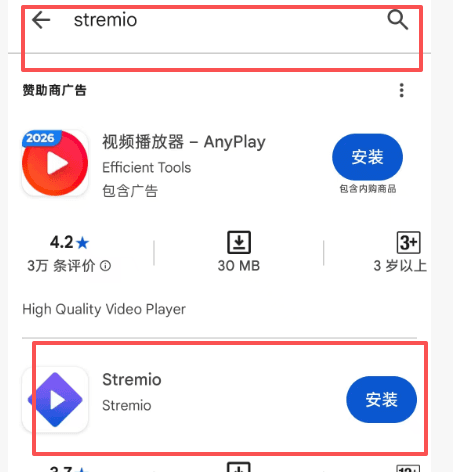
However, some users have reported that they can't find Stremio in the Play Store. Here's why: Stremio was temporarily pulled from the Google Play Store around late December 2025 / early January 2026 due to potential policy violations related to copyright infringement and piracy. This kind of thing typically leads to automatic delisting for apps that provide streaming access to copyrighted content.
But don't panic — we've got another method that's guaranteed to work.
Method 2: Sideload via USB Drive
First, open a browser on your computer and go to the official Stremio Android TV download page: https://www.stremio.com/downloads
Find the download link on the right side of the Stremio for Android TV section. I'm going with version 1.9.4 here.
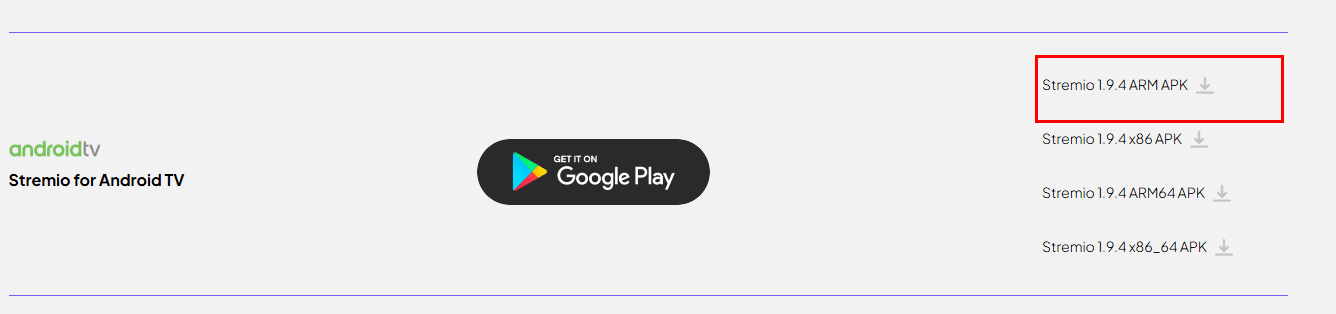
Next, copy the downloaded APK file to your USB drive. (You can probably already see where this is going.)
Then plug the USB drive into your Xiaomi TV Box. But before we install anything, there are a couple of settings we need to take care of first — and there are two gotchas you'll want to watch out for.
Step 1: Allow Installation from Unknown Sources
The settings path may vary slightly depending on your version of MIUI TV. Try one of the following:
Option A (common on newer systems):
- Go to Settings on your Xiaomi TV.
- Select Account & Security.
- Look for Install apps from unknown sources or something similar.
- Once you're in, it may list specific apps (like "File Manager", "App Store", etc.). Find the app you plan to use for installing the APK — usually File Manager or a third-party file manager you've installed — select it, and set its permission to Allow.
- If no specific apps are listed, it's probably just a master toggle — simply switch it to Allow.
Option B (some systems require Developer Mode):
- Go to Settings on your Xiaomi TV.
- Select About or Device Info.
- Find Product Model, MIUI TV Version, or Build Number.
- Tap on it rapidly about 7 times until you see a message saying "You are now in Developer Mode!"
- Go back to the previous menu — you should now see a new Developer Options menu (sometimes it shows up under "Account & Security" or elsewhere).
- Go into Developer Options, find Allow app installation via USB or USB Debugging, and turn it on. (Sometimes after enabling USB Debugging, you'll get a confirmation prompt during installation.)
Step 2: Install the APK
Once the settings are sorted, here's the actual installation process:
- Enable "Install from unknown sources" — This is the crucial step. Without it, the TV will block you from installing any app that doesn't come from the official store.
- Get the APK file — Download the
.apkfile for the app you want from a trusted source. - Copy the APK to your USB drive — Put the downloaded APK in the root directory or an easy-to-find folder on the drive.
- Plug the USB drive into the TV — Insert it into one of the USB ports on your Xiaomi TV Box.
- Find and install the APK using a file manager — Open the file manager app on the TV, navigate to the USB drive, find the APK file, and tap install.
And that's it — you're all set!