Applicable to: Windows / macOS / Linux / Android / Android TV Core idea: Let Stremio handle "finding streams" and let an external player (VLC/MX/Kodi) handle "decoding and playback", bypassing compatibility issues with MKV / HEVC (H.265) / audio tracks, etc.
1) Install VLC First (Windows / macOS / Linux)
Windows (Recommended: Official Installer)
- Official download page: https://www.videolan.org/vlc/download-windows.html
Installation steps:
- Open the link above and click Download VLC to download the
.exe - Double-click the installer to run it (click Yes if prompted for system permissions)
- Click Next all the way through (defaults are fine) → Install → Finish
- Open VLC media player from the Start menu
(Optional) You can also install via the Microsoft Store: https://apps.microsoft.com/detail/xpdm1zw6815mqm
macOS (DMG Drag-and-Drop Install)
- Official download page: https://www.videolan.org/vlc/download-macosx.html
Installation steps:
- Download the
.dmgfile and double-click to open it - Drag VLC into Applications
- Open VLC from the Applications folder
- If you see a security restriction: System Settings → Privacy & Security → Allow to open
Linux (Ubuntu Example)
Method A: Snap (easier)
sudo snap install vlc
Method B: APT (traditional)
sudo apt update
sudo apt install vlc
VLC official website (other distributions can find their corresponding methods here): https://www.videolan.org/
2) Enable "External Player" in Stremio (VLC/MX/Kodi) (It is recommended to upgrade Stremio to the latest version, currently version 5)
First, open Stremio and start playing the video you want to watch.
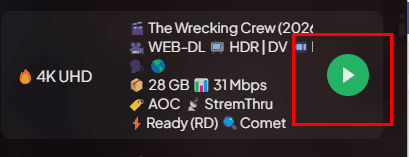
Then click pause, find the three dots on the far right, and click on them. It will show an option to play in VLC (if you have VLC installed). This way, barring any issues, you should no longer see the "Video is not supported" message.
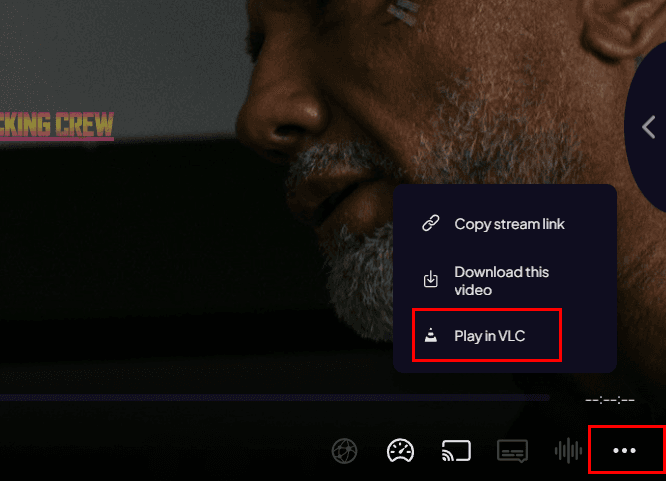
If you still don't understand, or if you're using Stremio on mobile, please watch the video demonstrations below:
Video demo: How to enable external player in Stremio (Windows version)
Video demo: How to enable external player in Stremio (Mobile version)
3) Troubleshooting
3.2 Still Getting "Video is not supported"
- Switch to a different source: prioritize sources with MP4 / H.264 format
- Toggle hardware acceleration: Settings → Player/Playback → Hardware acceleration (turn it off if it's on, turn it on if it's off) → retry

3.3 You Are Using Stremio Web (Browser Version)
The PC browser version may show "Play in external player = Disabled".
The most reliable solution: switch to the Stremio desktop app or Android TV app to play the same source.
4) Supplementary Videos (Best placed next to the corresponding steps for easier follow-along)
4.1 Step-by-step: Enable "Always Launch with External Player"
https://www.youtube.com/watch?v=0xTVTytcHyo