Many Stremio users experience a frustrating issue: videos play with audio but show only a black screen. This problem commonly occurs on Android TV, Fire Stick 4K, Chromecast, and Xiaomi devices. Here are the proven solutions.
Solution 1: Exclude Dolby Vision in Torrentio (Most Common Fix)
This is the most effective solution I've personally used.
If your TV doesn't support Dolby Vision, DV content will show a black screen.
Install/Configure Torrentio:
Configuration page: https://torrentio.strem.fun/
Steps:
- Go to https://torrentio.strem.fun/
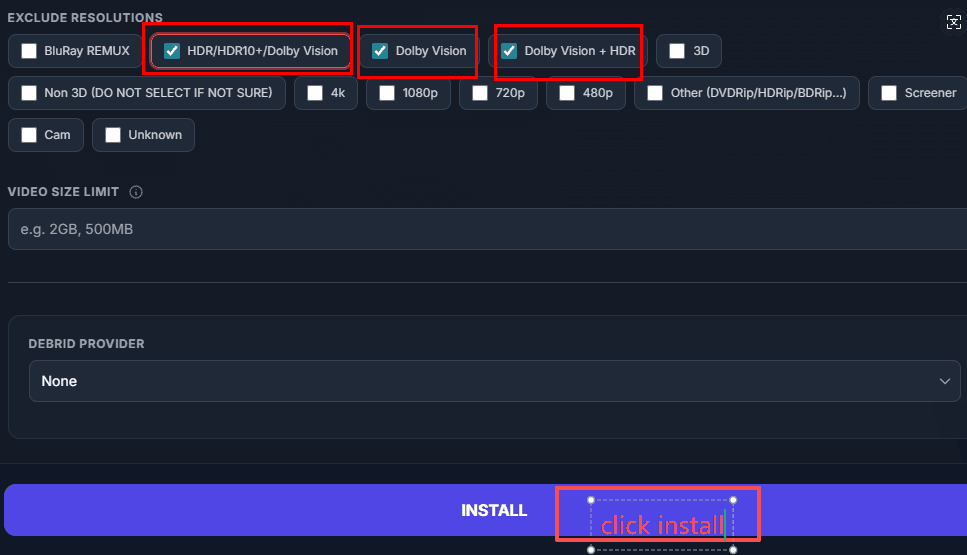
- Scroll down to EXCLUDE RESOLUTIONS section
- Check these options:
- HDR/HDR10+/Dolby Vision
- Dolby Vision
- Dolby Vision + HDR
- Scroll to bottom and click Install
- Stremio will open and prompt you to add the addon
Common Issues:
- "Page not found" when clicking Install → Update Stremio to latest version from https://www.stremio.com/downloads
- Install button doesn't work → Right-click "Install", copy link, paste into Stremio search box and press Enter
Solution 2: Enable/Disable Hardware Acceleration
Steps:
- Open Stremio
- Click Settings (gear icon)
- Find Player section
- Toggle Hardware-accelerated decoding on or off
- Restart Stremio and test
Common Issues:
- Some devices work better with it ON, others with it OFF - try both
- After changing, must restart Stremio completely
Solution 3: Change Display Color Format (Chromecast/Google TV)
Steps:
- Go to device Settings → Display
- Find HDR format and colors → Color format
- Change to YCbCr 4:2:2 12-bit
- Restart Stremio
Common Issues:
- Option location varies by device/TV brand
- Some TVs: Settings → Picture → Advanced → HDMI Color Format
Solution 4: Lower System Resolution
Steps:
- Go to device Settings → Display
- Change resolution from 4K to 1080p
- Test Stremio playback
Common Issues:
- This is a workaround, not ideal for 4K TV owners
- Try Solution 1 first to keep 4K quality
Solution 5: Use External Player
Download Links:
- VLC (All platforms): https://www.videolan.org/vlc/
- MX Player (Android): Search "MX Player" in Google Play Store
Steps:
- Install VLC or MX Player on your device
- Open Stremio, play any video
- Click the player icon or "Play in external player"
- Select VLC or MX Player
Common Issues:
- External player not showing → Make sure VLC/MX Player is installed and updated
- Android TV: MX Player works better than VLC
- Windows/Mac: VLC is recommended
Solution 6: Update Stremio & Device Firmware
Stremio Download: https://www.stremio.com/downloads
Steps:
- Check for Stremio updates in app or download latest from website
- Check your TV/device for system updates (Settings → System → Software Update)
- Restart device after updating
Common Issues:
- Old Stremio versions have known bugs with HDR content
- Some TV firmware updates fix HDMI handshake issues
Still Having Issues?
If none of the above works:
- Try a different stream source (different quality/provider)
- Clear Stremio cache: Settings → Clear cache
- Reinstall Stremio completely
- Check Stremio Reddit community: https://www.reddit.com/r/Stremio/