This guide explains what the Flix-Streams addon does, how to install it into Stremio, and how to configure Providers, Subtitles (Wyzie), and Live TV.
1) What Flix-Streams Does
Flix-Streams is a Stremio addon that helps you:
- Aggregate multiple streaming providers under one addon, so you can get playable links from different sources.
- Enable Wyzie subtitles, with configurable language/format/source preferences.
- Optionally enable Live TV channels, selectable by country.
- Use community/support links (Discord/Reddit and support storefronts) provided on the configuration page.
2) Support & Community (Where to Get Help)
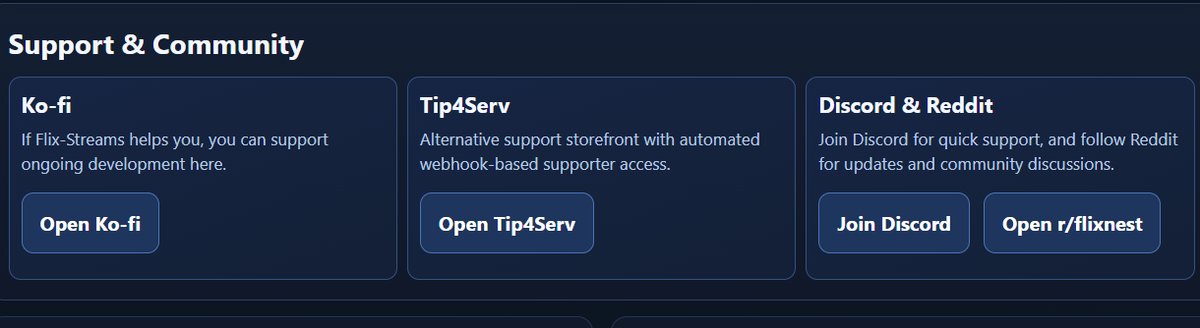
On the configuration page, you’ll find quick links for:
- Ko-fi / Tip4Serv: support options
- Discord: quick help and support
- Reddit: updates and community discussions
3) Providers (Streaming Sources)
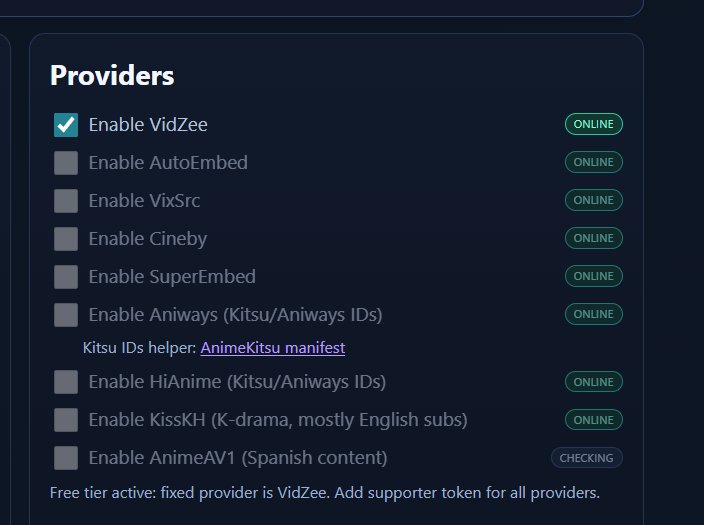
Providers are the stream sources Flix-Streams can query. You can enable/disable them depending on what you watch.
How to configure Providers
- Open the Providers section.
- Check the providers you want to use.
- Watch the status badges (e.g., ONLINE / CHECKING) to confirm availability.
- Keep your enabled list small and practical (enabling too many can make results noisy).
Tips
- Start with 1–3 providers first, then expand if you need more results.
- If you watch anime often, enable the anime-focused providers and use the anime subtitle tips in the subtitle section below.
4) Live TV Channels (Optional)
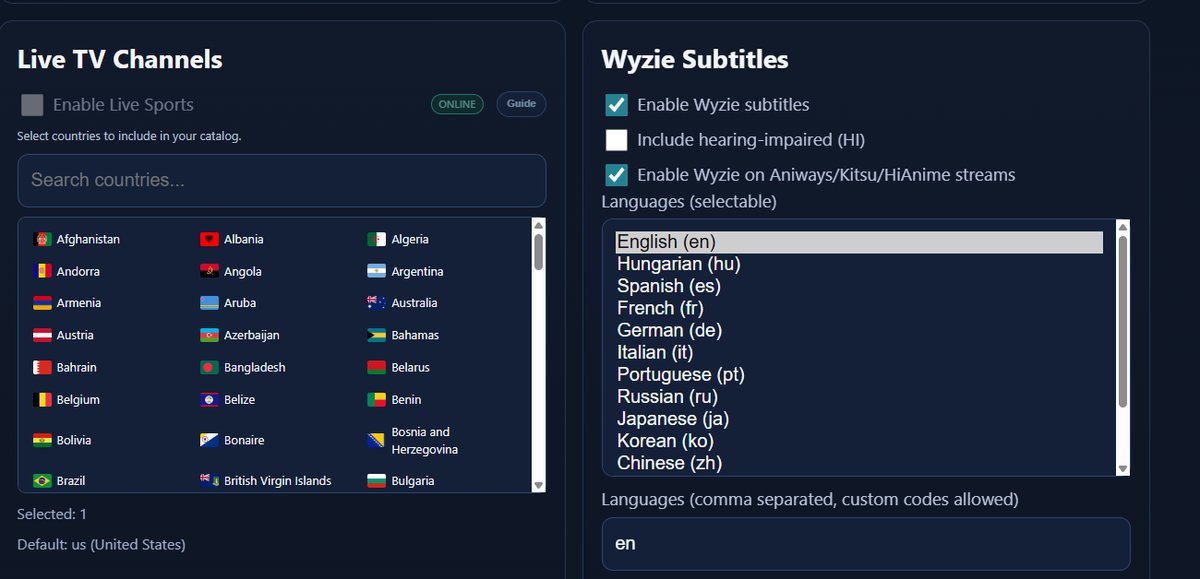
Flix-Streams can add a Live TV catalog into Stremio. You can choose which countries’ channels appear.
How to enable Live TV
- Find the Live TV Channels section.
- Enable the Live TV option (and Live Sports if you want it).
- Use the country selector to choose what appears in your catalog.
- Keep the country list focused to avoid a huge channel catalog.
5) Wyzie Subtitles (Recommended)
Wyzie subtitles can automatically fetch subtitles for streams. This is the most important area to configure for a good experience.
5.1 Enable subtitles
- ✅ Enable Wyzie subtitles
- Optional: Include hearing-impaired (HI) if you want HI/CC subtitle tracks.
- Optional: Enable Wyzie on Aniways/Kitsu/HiAnime streams if you use anime sources heavily.
5.2 Language selection
You can select languages from the list or use the text box for comma-separated language codes.
Examples
- English:
en - Spanish:
es - French:
fr - German:
de - Chinese (generic):
zh
5.3 Formats
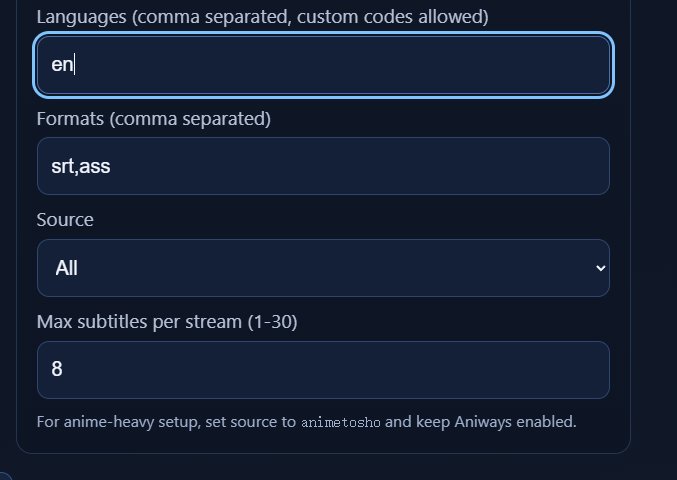
Set subtitle formats you prefer (comma-separated). Common choices:
srt,ass(good default)- If ASS rendering causes issues, try:
srt
5.4 Source + Max subtitles
- Source: choose where subtitles are searched from (or keep All).
- Max subtitles per stream: how many subtitle tracks to attach per stream (1–30). Good default: 8.
6) Install to Stremio (After You Configure)
Once your settings are ready:
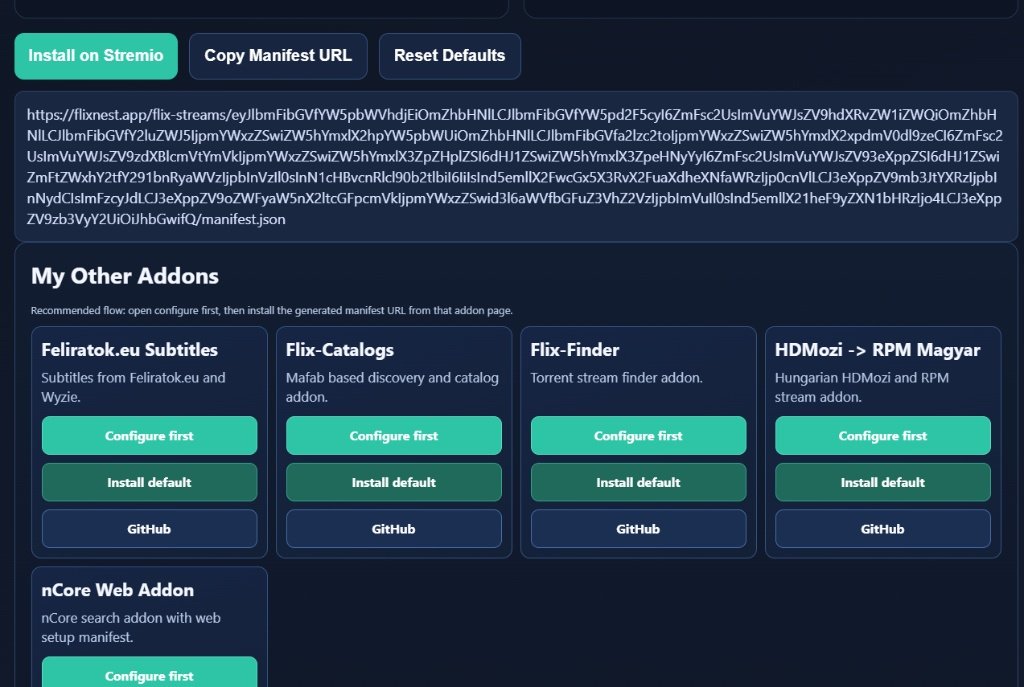
- Click Install on Stremio (fastest path), or
- Click Copy Manifest URL and paste it into Stremio’s addon installation by URL.
- Use Reset Defaults if you want to start over.
Also shown on the page: other related addons you can install (optional).
7) Recommended “Quick Start” Configuration
If you just want something that works quickly:
Providers
- Enable 1–3 providers to start (expand later only if needed).
Wyzie Subtitles
- Enable Wyzie subtitles ✅
- Languages:
en(oren,xxfor your second language) - Formats:
srt,ass - Source:
All - Max subtitles per stream:
8
Live TV
- Leave OFF unless you specifically want live channels; then choose only a few countries.
8) Troubleshooting
Streams not showing / very few results
- Confirm at least one Provider is enabled and shows ONLINE.
- Enable one additional provider at a time and test again.
Subtitles not appearing
- Ensure Enable Wyzie subtitles is on.
- Try setting language via the text box (e.g.,
en). - Try formats
srtonly (some players handle ASS differently). - Keep Source as
Allwhile testing.
Too many results / messy catalog
- Disable extra providers.
- Reduce Max subtitles per stream.