CinemaCove is a catalog-style addon designed specifically for Stremio. Its core function is to generate personalized movie or TV show lists based on your preferences (such as rating, year, and language), pulling data from TMDb and Trakt. It helps you solve the ultimate question: What should I watch next?
I. Before You Start
1. Install Stremio
Make sure Stremio is installed and you’re logged in on your computer, phone, or TV device.
2. Open the Configuration Page
Launch your browser and go to:
👉 https://cinema-cove.onrender.com/
II. Step-by-Step Setup Guide (With Image Placeholders)
1. Create Your First Catalog
Once you enter the page, click the large "Create your first catalog" button to begin.
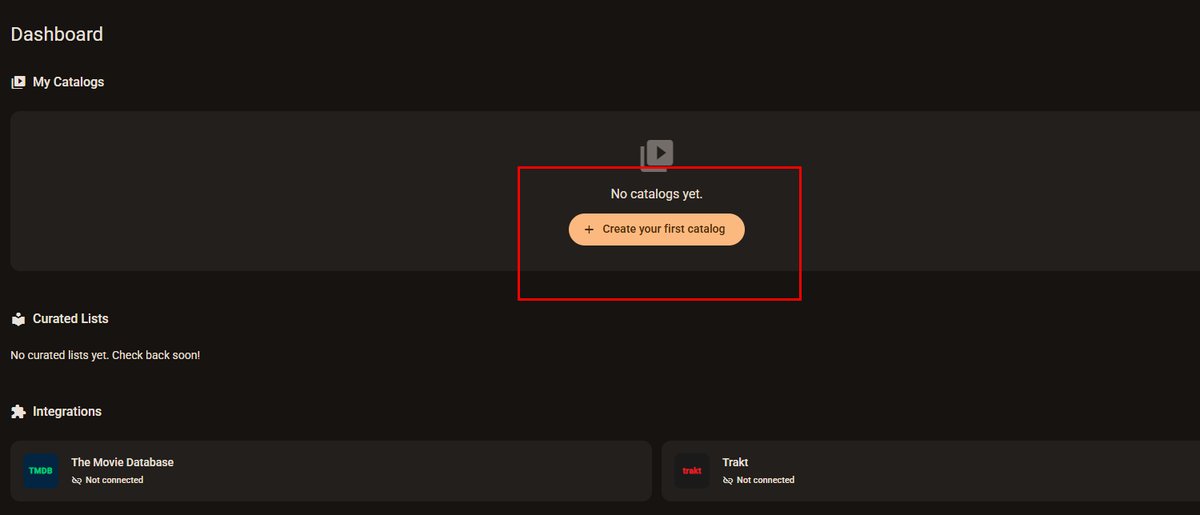
2. Basic Catalog Settings (New Catalog)
Catalog Name
Give your list a name (e.g., TopRatedAction).
Only letters, numbers, hyphens -, or underscores _ are allowed. Maximum 20 characters.
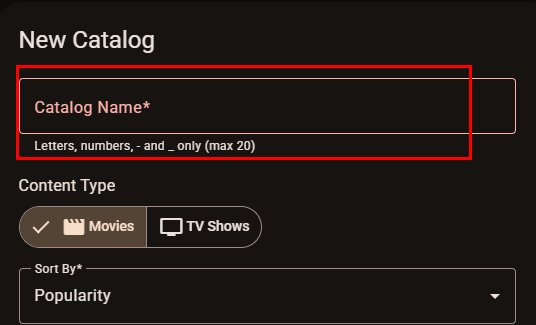
Content Type
Choose whether you want:
- Movie
- TV Show
3. Sorting & Multi-Language Support
Sort By
Decide how your list should be ordered:
- Popularity
- Release Date
- Vote Average
Languages
Select the languages you want to include.
CinemaCove supports selecting up to 10 languages at once, making it highly flexible for multilingual users.
4. Advanced Filters (The Most Powerful Feature)
This is where you can fine-tune your results and filter out low-quality content.
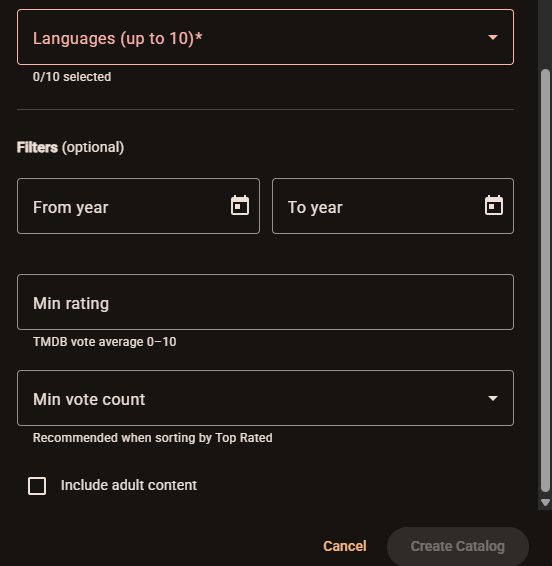
Year Range (From / To)
Set the release years you’re interested in.
Minimum Rating (Min rating)
Based on TMDb’s 10-point scale.
Recommended: 7.0 or higher for better quality.
Minimum Vote Count (Min vote count)
This helps filter out obscure titles with inflated ratings.
Recommended: 500+ votes to ensure ratings are reliable.
Adult Content
If you want to include adult content, manually check "Include adult content".
5. Third-Party Account Integrations
Click the "Connect" button at the bottom to link your accounts:
The Movie Database (TMDb)
Provides comprehensive metadata and ratings.
Trakt
After connecting, you can sync your:
- Watchlists
- Custom lists
These will appear directly inside Stremio.
III. How to Install the Catalog in Stremio
1. Generate the Link
After filling in your settings, click "Create Catalog".
2. Install the Addon
- If you’re on a device with Stremio installed, clicking the generated link will automatically open Stremio and show the installation prompt.
- If you're on another device, copy the generated link and paste it into the Addon Repository URL field in Stremio’s addon search box.
3. Click Install
Confirm by clicking "Install".
Your custom catalog will now appear on the Stremio homepage or under the Discover section.
IV. Frequently Asked Questions (FAQ)
Q: Why can’t I play anything even though the catalog is there?
A: This is a common misunderstanding.
CinemaCove only provides the bookshelf (the catalog), not the books (the video streams).
You’ll need additional provider addons such as Torrentio or MediaFusion to get playable streams.
Q: The list fails to load or appears empty. What should I do?
A: Since the addon is hosted on a cloud server, there may be a short “cold start” delay when accessed for the first time.
If it doesn’t load after a while:
- Restart Stremio
- Check your internet connection
Q: Can I create multiple catalogs with different themes?
A: Absolutely.
You can revisit the configuration page and create multiple catalogs such as:
- HighRatedSciFi
- ClassicChineseFilms
- 90sThrillers
Each one will appear as a separate entry inside your Stremio library.
💡 Pro Tip
It’s recommended to periodically revisit the configuration page and refresh your Trakt authorization to ensure synchronization continues working properly.